---
title: Add my Microsoft 365 email to Outlook on (Mac)
description: Add your Microsoft 365 email to Outlook for Mac. You'll then be ready to send and receive email from your computer.
---
[Skip to content](https://customers.lookitdesign.com/knowledge-base/add-my-microsoft-365-email-to-outlook-on-mac#main-content)
English - United States
Show submenu for translations

Open main navigation
Close main navigation
- English - United States
Show submenu for translations
- Contact us
Contact us
How can we help you?
- There are no suggestions because the search field is empty.
1. [Lookit Knowledge Base](https://customers.lookitdesign.com/knowledge-base?hsLang=en-us)
2. [Getting started](https://customers.lookitdesign.com/knowledge-base/getting-started?hsLang=en-us)
3. [Email](https://customers.lookitdesign.com/knowledge-base/getting-started?hsLang=en-us#email)
# Add my Microsoft 365 email to Outlook on (Mac)
## Add your Microsoft 365 email to Outlook for Mac. You'll then be ready to send and receive email from your computer.
1. Open Outlook. Don't have the app? [Here's how to download it](https://www.secureserver.net/help/download-and-install-office-8909?pl_id=463805&plid=463805).
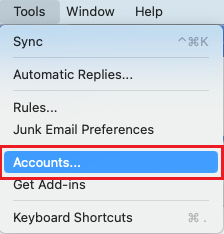
2. If you're a new user, select **Add Email Account**, and then skip to step 4. Otherwise, select **Tools**, and then **Accounts**.
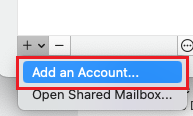
3. Select the plus sign **(+)**, and then **Add an account**.
4. Enter your email address, and then select **Continue**.
- You might get a page with accounts found. If the email address that you're setting up is listed, select it. Otherwise, select **Add Others** to continue. 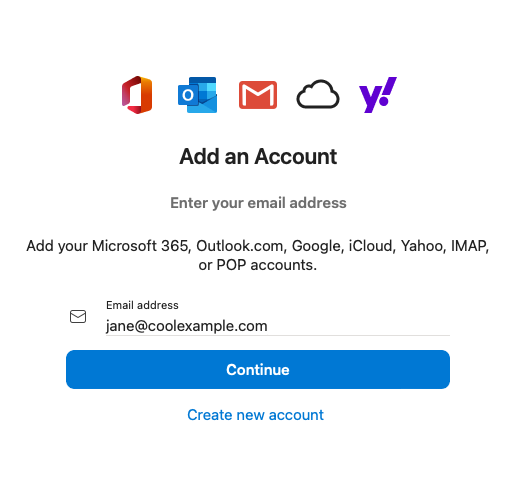
5. Enter your email passwords, and then select **Sign in**. You might need to select your account type as **Work or school**, not **Personal**, to continue.

6. If your admin enabled multi-factor authentication (MFA), verify your account or [set up the Authenticator app](https://www.secureserver.net/help/set-up-my-multi-factor-authentication-method-40415?pl_id=463805&plid=463805).
7. You'll be asked if you want to add another account. Tap **Done** to go to your Outlook inbox.

Your Microsoft 365 email is now on your Outlook for Mac and you're ready to go!
- [Getting started](https://customers.lookitdesign.com/knowledge-base/getting-started?hsLang=en-us#main-content)
- [Email](https://customers.lookitdesign.com/knowledge-base/getting-started?hsLang=en-us#email)
- [Website Editing](https://customers.lookitdesign.com/knowledge-base/website-editing?hsLang=en-us#main-content)
- [Elementor](https://customers.lookitdesign.com/knowledge-base/website-editing?hsLang=en-us#elementor)
- [ADA compliance](https://customers.lookitdesign.com/knowledge-base/ada-compliance?hsLang=en-us)
[](https://lookitdesign.com)
800 E 17th St. Brooklyn, NY 11230
[mailto:email@email.com](mailto:email@email.com)
Copyright © 2024, Lookit Design