---
title: Add my Microsoft 365 email to Outlook on (iPhone or iPad)
description: Add your Microsoft 365 email to Outlook for iPhone and iPad. Then you can send and receive emails wherever you are.
---
[Skip to content](https://customers.lookitdesign.com/knowledge-base/add-my-microsoft-365-email-to-outlook-on-iphone-or-ipad#main-content)
English - United States
Show submenu for translations

Open main navigation
Close main navigation
- English - United States
Show submenu for translations
- Contact us
Contact us
How can we help you?
- There are no suggestions because the search field is empty.
1. [Lookit Knowledge Base](https://customers.lookitdesign.com/knowledge-base?hsLang=en-us)
2. [Getting started](https://customers.lookitdesign.com/knowledge-base/getting-started?hsLang=en-us)
3. [Email](https://customers.lookitdesign.com/knowledge-base/getting-started?hsLang=en-us#email)
# Add my Microsoft 365 email to Outlook on (iPhone or iPad)
## Add your Microsoft 365 email to Outlook for iPhone and iPad. Then you can send and receive emails wherever you are.
**Required:** Before continuing, make sure you have the Outlook app. To download Outlook, use your phone's camera to scan this QR code.

1. Open Outlook.
2. If you're a new user, skip to step 4. Otherwise, tap  the account menu, and then  **Settings**.
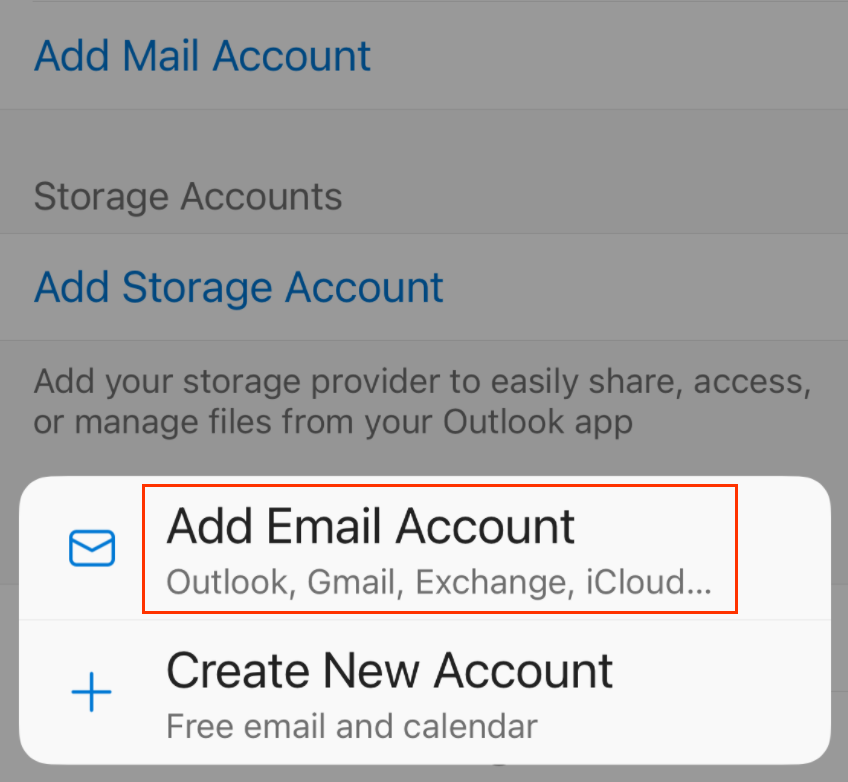
3. Tap **Add Mail Account**, and then **Add Email Account**.
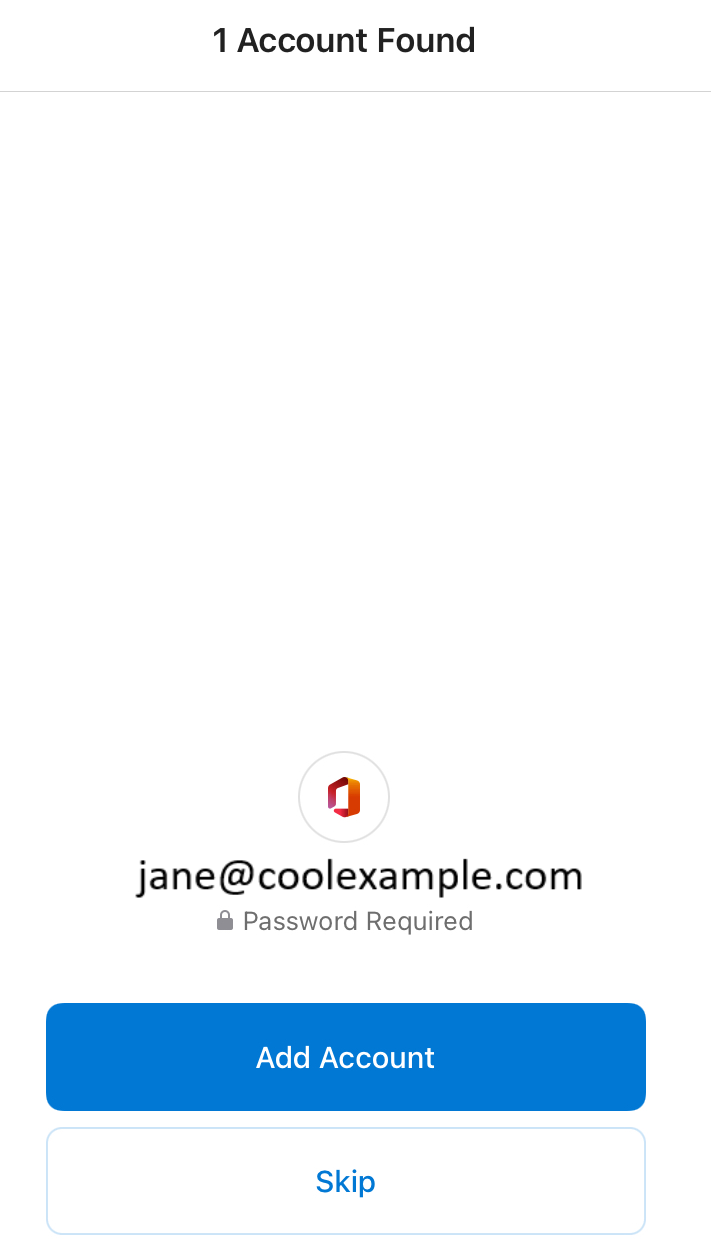
4. Enter your Microsoft 365 email address, and then tap **Add Account**.
- You might get an **Account Found** page. If the email address that you're setting up is listed, tap **Add Account**. Otherwise, tap **Skip**.
5. If your admin enabled multi-factor authentication (MFA), verify your account or [set up the Authenticator app](https://www.secureserver.net/help/set-up-my-multi-factor-authentication-method-40415?pl_id=463805&plid=463805).
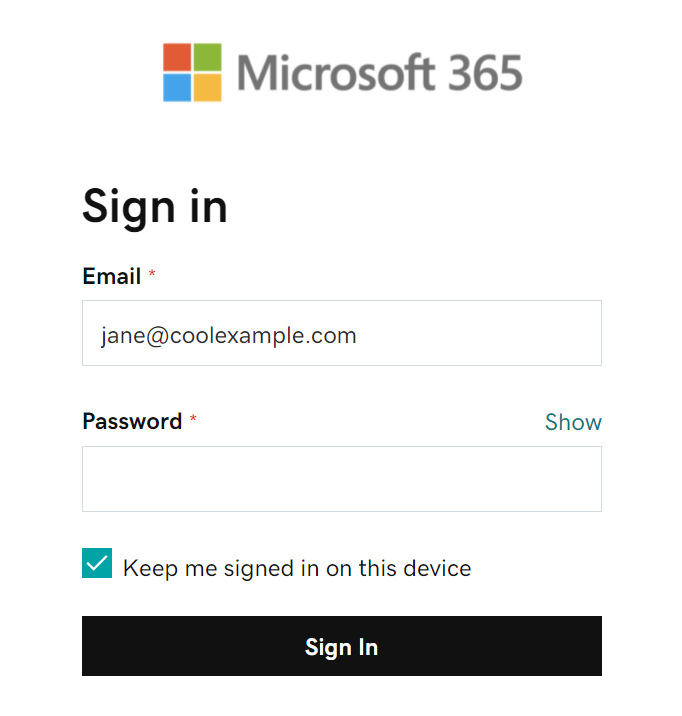
6. Enter your Microsoft 365 email password, and then tap **Sign In**. You might need to choose your account type as **Work or school**, not **Personal**, to continue.
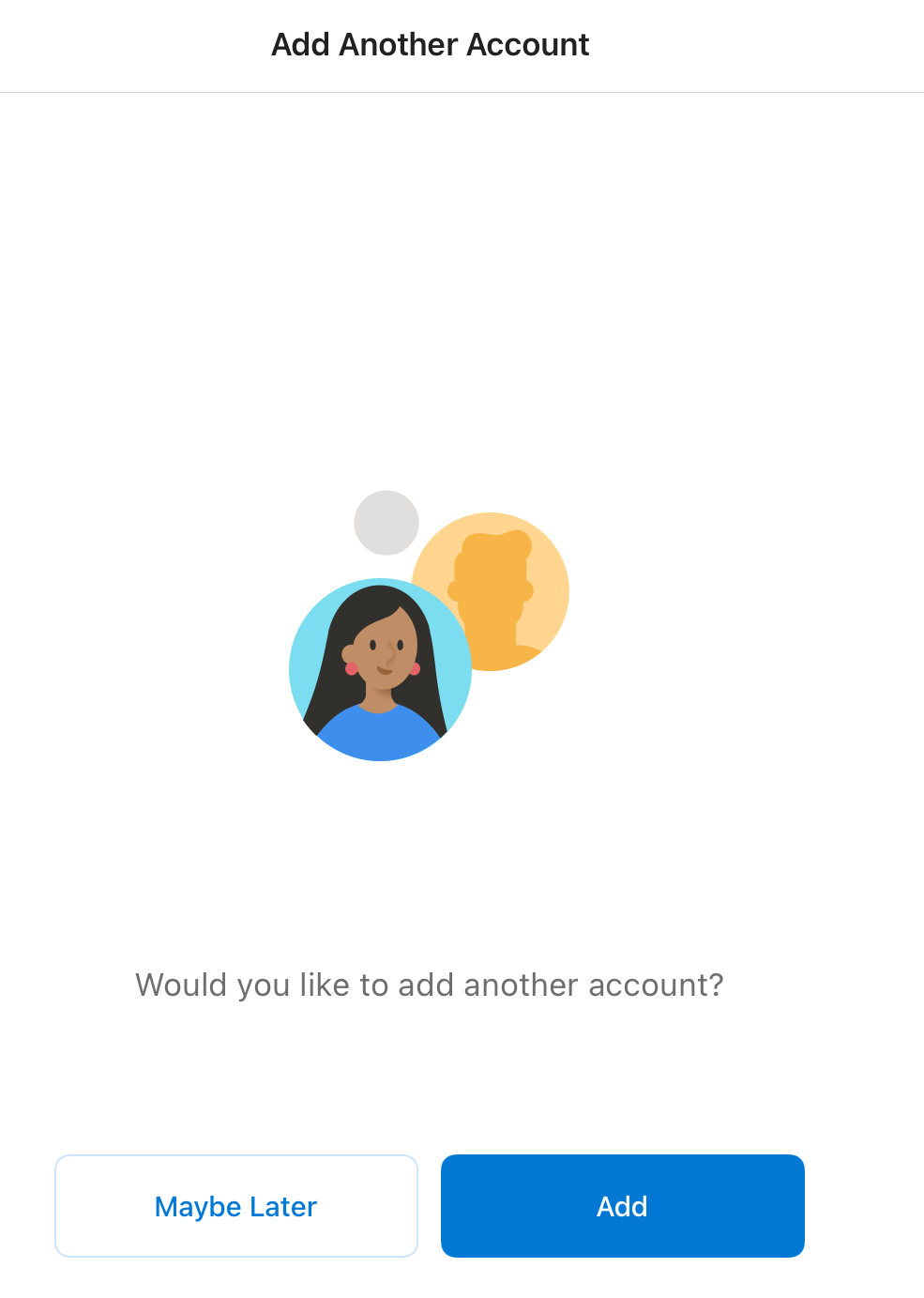
7. If this is your first email account on Outlook for iPhone or iPad, you'll be asked if you want to add another account. To skip this step, tap **MAYBE LATER**. If this isn't your first account, you'll be taken back to the settings page.
Your Microsoft 365 email is now on your Outlook for iPhone or iPad, and you're ready to go!
- [Getting started](https://customers.lookitdesign.com/knowledge-base/getting-started?hsLang=en-us#main-content)
- [Email](https://customers.lookitdesign.com/knowledge-base/getting-started?hsLang=en-us#email)
- [Website Editing](https://customers.lookitdesign.com/knowledge-base/website-editing?hsLang=en-us#main-content)
- [Elementor](https://customers.lookitdesign.com/knowledge-base/website-editing?hsLang=en-us#elementor)
- [ADA compliance](https://customers.lookitdesign.com/knowledge-base/ada-compliance?hsLang=en-us)
[](https://lookitdesign.com)
800 E 17th St. Brooklyn, NY 11230
[mailto:email@email.com](mailto:email@email.com)
Copyright © 2024, Lookit Design