---
title: Add my email signature to Outlook (Mac)
description: Set Outlook to automatically add your signature to every message, or only on specific messages you send. Email signatures can show your name, job title, phone number, website, and any other contact info you want to include.
---
[Skip to content](https://customers.lookitdesign.com/knowledge-base/add-my-email-signature-to-outlook-mac#main-content)
English - United States
Show submenu for translations

Open main navigation
Close main navigation
- English - United States
Show submenu for translations
- Contact us
Contact us
How can we help you?
- There are no suggestions because the search field is empty.
1. [Lookit Knowledge Base](https://customers.lookitdesign.com/knowledge-base?hsLang=en-us)
2. [Getting started](https://customers.lookitdesign.com/knowledge-base/getting-started?hsLang=en-us)
3. [Email](https://customers.lookitdesign.com/knowledge-base/getting-started?hsLang=en-us#email)
# Add my email signature to Outlook (Mac)
## Set Outlook to automatically add your signature to every message, or only on specific messages you send. Email signatures can show your name, job title, phone number, website, and any other contact info you want to include.
Need help making a professional signature? [Create your signature](https://www.secureserver.net/help/create-my-email-signature-40400?pl_id=463805&plid=463805) in the Email & Office Dashboard, then add it to Outlook.
1. Open Outlook for Mac. (Don't have the app? [Here's how to download it](https://www.secureserver.net/help/download-and-install-office-8909?pl_id=463805&plid=463805).)
2. In the Outlook menu, select **New Email**.

3. Select **Signature**, then **Edit Signatures**.
4. Select the  plus button to add a new signature.
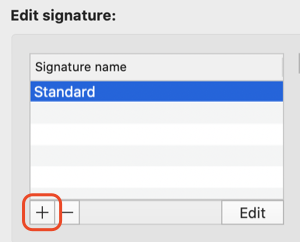
5. Enter a signature or paste one you already created. Then enter a **Signature Name** to identify it.
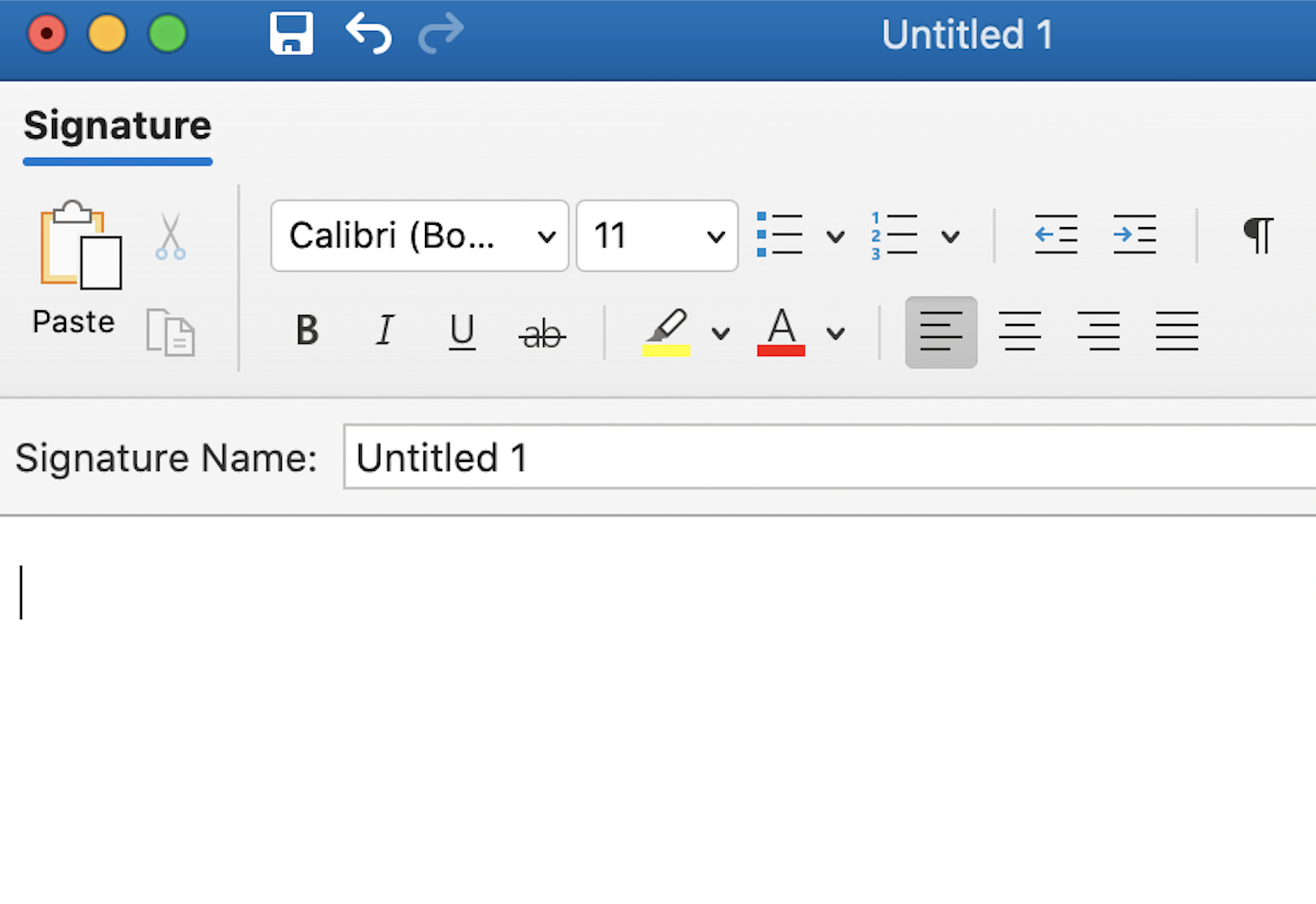
6. Select **Save**.

7. Under **Choose default signature**, use the lists to select the signature that'll automatically appear on **New messages** and/or **Replies/forwards**. Select **None** to remove signatures from automatically appearing.

8. Close the window. Your signature will now appear on your messages.
If you want to only add your signature to certain emails, you can select it from the message composing options.

#### Related steps
Here are some other ways you can customize your signature:
- **Image**: Use the  picture button to add an image, such as your logo.
- **Link**: Use the  hyperlink button to add your website, an email address, or file link. You can also add your social media links by adding a social media icon, selecting the image and using the hyperlink button to attach the site.
- [Getting started](https://customers.lookitdesign.com/knowledge-base/getting-started?hsLang=en-us#main-content)
- [Email](https://customers.lookitdesign.com/knowledge-base/getting-started?hsLang=en-us#email)
- [Website Editing](https://customers.lookitdesign.com/knowledge-base/website-editing?hsLang=en-us#main-content)
- [Elementor](https://customers.lookitdesign.com/knowledge-base/website-editing?hsLang=en-us#elementor)
- [ADA compliance](https://customers.lookitdesign.com/knowledge-base/ada-compliance?hsLang=en-us)
[](https://lookitdesign.com)
800 E 17th St. Brooklyn, NY 11230
[mailto:email@email.com](mailto:email@email.com)
Copyright © 2024, Lookit Design